> For the complete documentation index, see [llms.txt](https://guide.unigox.com/llms.txt). Markdown versions of documentation pages are available by appending `.md` to page URLs; this page is available as [Markdown](https://guide.unigox.com/user-guides/pay-suppliers-in-china.md).
# How to pay suppliers in China
Pay a supplier invoice in CNY or USD with Unigox. Follow the steps from identity verification and bank details to funding and payment confirmation.
Pay a production deposit, a balance before shipment or your next stock order with Unigox. Fund the payment in your local currency or with USDT or USDC. Your supplier receives the payment in their bank account.
| Where the supplier’s bank account is held | Currency you can send |
| ----------------------------------------- | --------------------- |
| Mainland China | CNY or USD |
| Hong Kong or Singapore | USD |

Have the supplier’s invoice and bank instructions ready. Confirm the amount due, the receiving currency and the bank account with them.
**You must complete identity verification (KYC) before making a supplier payment.**
## Open China payments
Go straight to [China payments](https://www.unigox.com/?type=pay-bill) and sign in if prompted.
You can also sign in at [unigox.com](https://www.unigox.com/) and select **Pay suppliers in China** above the **Buy Crypto / Sell Crypto** exchange form.
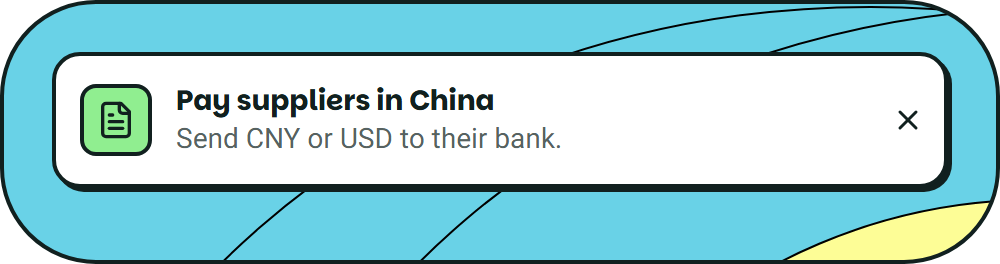 If you have hidden the banner, select **Pay China** in the widget header.
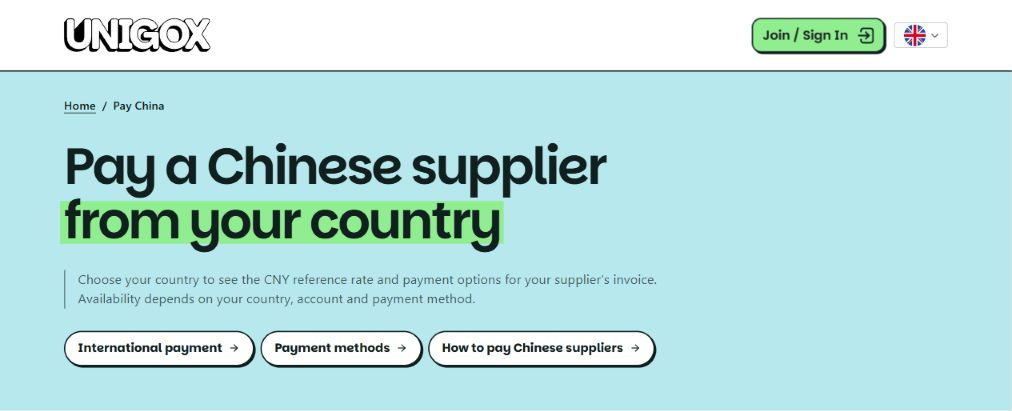
 To explore payment options first, visit the [Pay China page](https://www.unigox.com/pay-china) and choose the country you are paying from. You can view this page before signing in.
 ## Complete your identity check
If you see **Complete your identity check**, select **Open identity check**. Provide the information and documents requested.
Wait for approval, or complete any further action shown. Then return to China payments and fill in any additional sender details requested.
**Already verified?** Continue with your supplier payment. You only need to act if Unigox asks for missing information or an updated check.
The example below pays **INV-1042**, a **1,250 USD** invoice to **Example Trading Limited**. Screens show demonstration details and quotes. Use your supplier’s actual bank instructions and the current quote in your account.
## 1. Choose your supplier
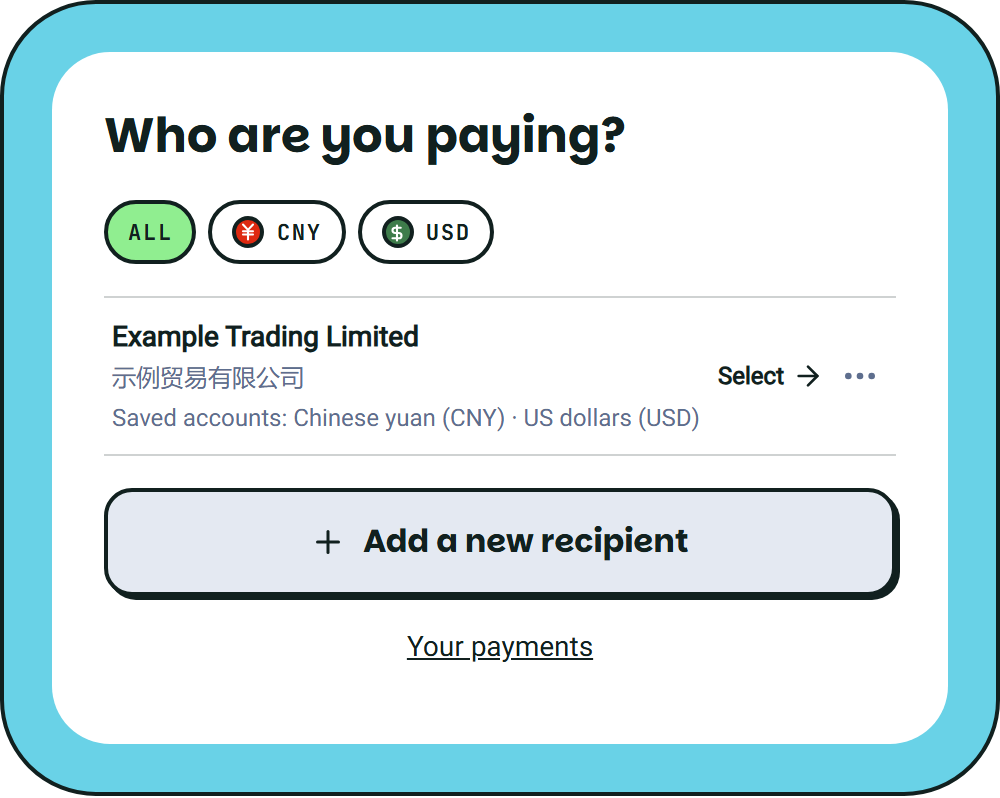
On **Who are you paying?**, select a saved supplier or choose **Add a new recipient**.
## Complete your identity check
If you see **Complete your identity check**, select **Open identity check**. Provide the information and documents requested.
Wait for approval, or complete any further action shown. Then return to China payments and fill in any additional sender details requested.
**Already verified?** Continue with your supplier payment. You only need to act if Unigox asks for missing information or an updated check.
The example below pays **INV-1042**, a **1,250 USD** invoice to **Example Trading Limited**. Screens show demonstration details and quotes. Use your supplier’s actual bank instructions and the current quote in your account.
## 1. Choose your supplier
On **Who are you paying?**, select a saved supplier or choose **Add a new recipient**.
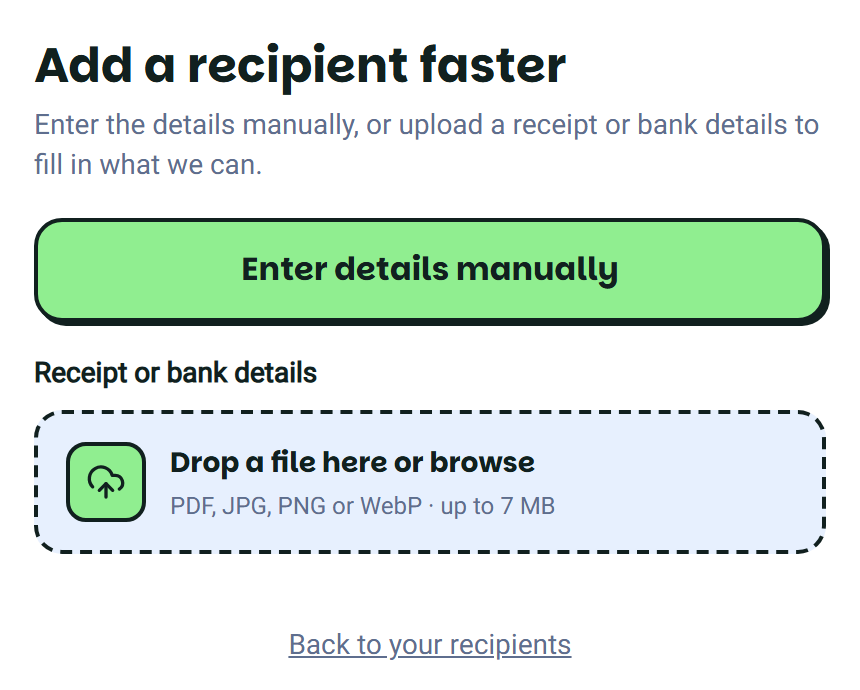
 For a new supplier, upload their invoice or bank-details document and select **Read and fill details**. You can also choose **Enter details manually**. Accepted files: PDF, JPG, PNG or WebP, up to 7 MB.
 Check the filled details against the document and correct anything missing or wrong. Reading a document does not verify the account. Confirm any change of bank details with a supplier contact you already trust.
## 2. Check the receiving bank account
Use the country where the **bank account** is held. For example, a supplier with a factory in Shenzhen can ask you to pay a Hong Kong account.
Choose the instructions for your payment:
{% tabs %}
{% tab title="China · USD" %}
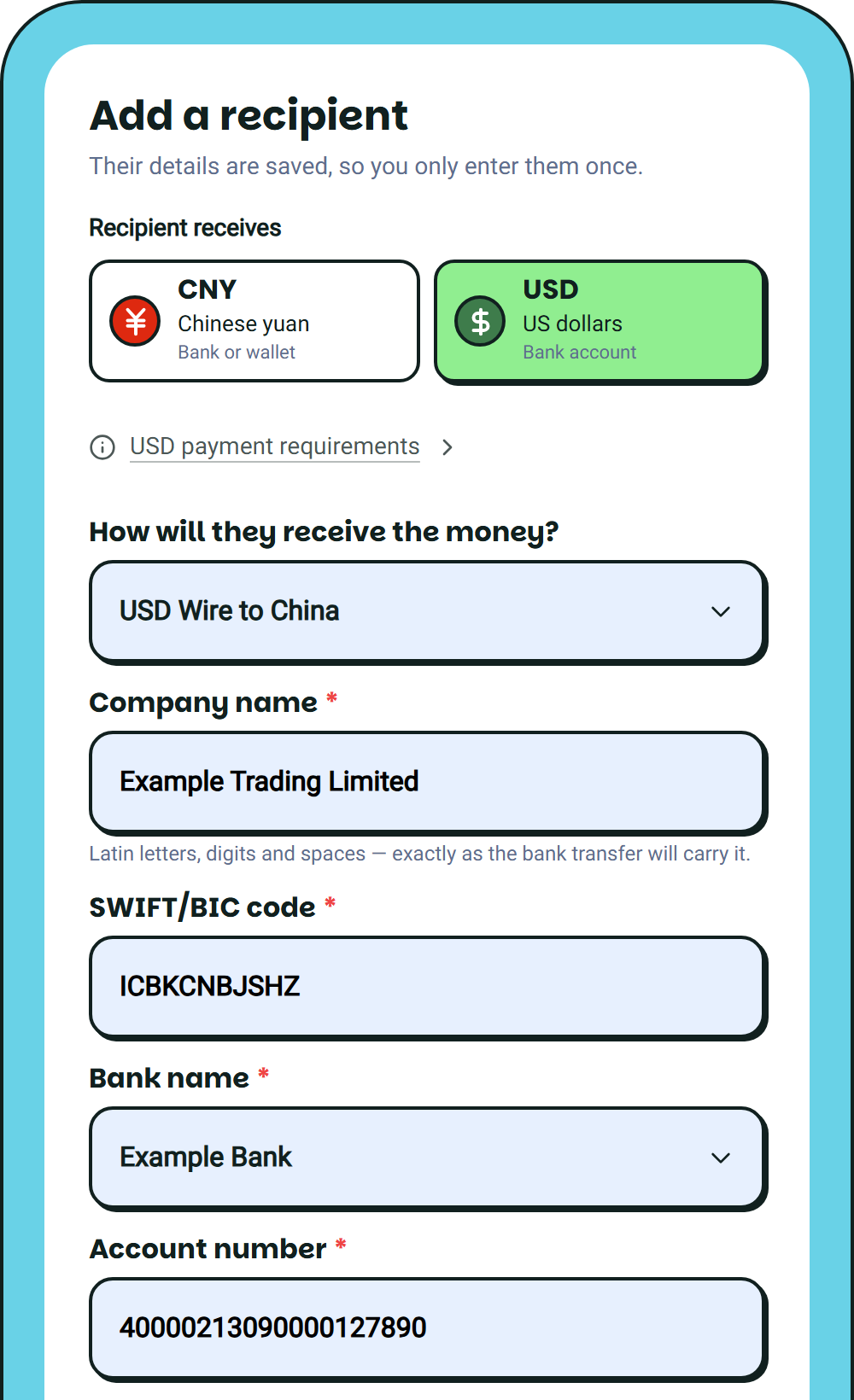
Choose **USD**, then **USD Wire to China**. Enter the company name in Latin letters, SWIFT/BIC code and full account number. Find the bank using search.
Check the filled details against the document and correct anything missing or wrong. Reading a document does not verify the account. Confirm any change of bank details with a supplier contact you already trust.
## 2. Check the receiving bank account
Use the country where the **bank account** is held. For example, a supplier with a factory in Shenzhen can ask you to pay a Hong Kong account.
Choose the instructions for your payment:
{% tabs %}
{% tab title="China · USD" %}
Choose **USD**, then **USD Wire to China**. Enter the company name in Latin letters, SWIFT/BIC code and full account number. Find the bank using search.
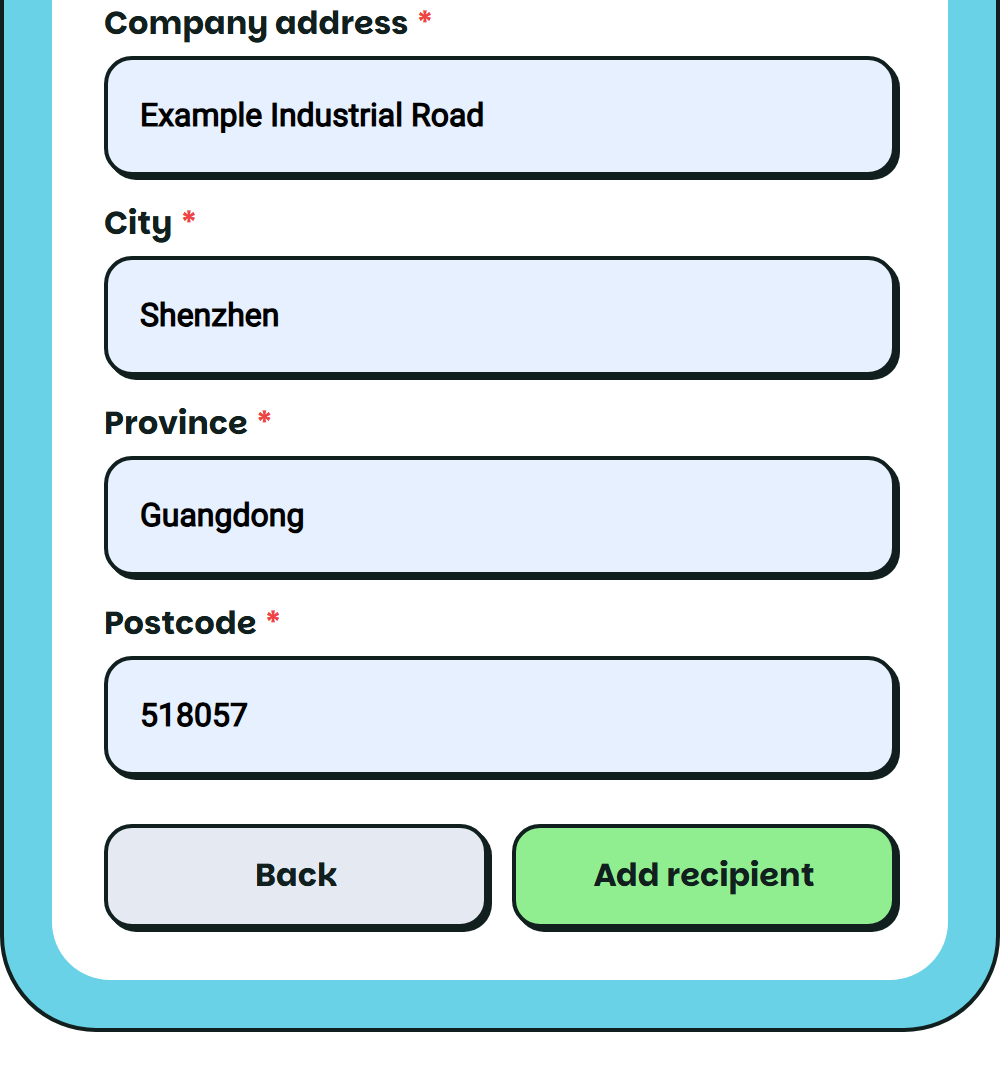
 Enter the **company’s** address, city, province and postcode. Ask the supplier for missing details; the bank’s address may be different.
 Keep any leading zeros and **NRA** or **OSA** prefix in the account number. These prefixes identify non-resident or offshore accounts. Do not add digits to make a prefixed account 20 digits long.
If the form asks you to remove punctuation from the company name, check the resulting name carefully. Ask the supplier if you are unsure. Select **Add recipient** when the details are complete.
{% endtab %}
{% tab title="China · CNY" %}
Choose **CNY** and the bank-account option. Ask your supplier for:
* Bank name and full account number.
* Company name in Latin letters and Chinese characters.
* The Chinese mobile number registered for the receiving bank account.
Find the bank using search. Enter the recipient’s registered mobile number with **+86**, then select **Add recipient**.

{% endtab %}
{% tab title="Hong Kong / Singapore" %}
Choose **USD**, then **USD Wire to Hong Kong** or **USD Wire to Singapore** under **How will they receive the money?**
Enter the company name in Latin letters, SWIFT/BIC code and full account number. Bank name is optional. Keep letters and leading zeros in the account number exactly as supplied, then select **Add recipient**.

{% endtab %}
{% endtabs %}
Using a saved supplier? Check that its account and receiving currency match this invoice before continuing.
## 3. Enter the amount and invoice
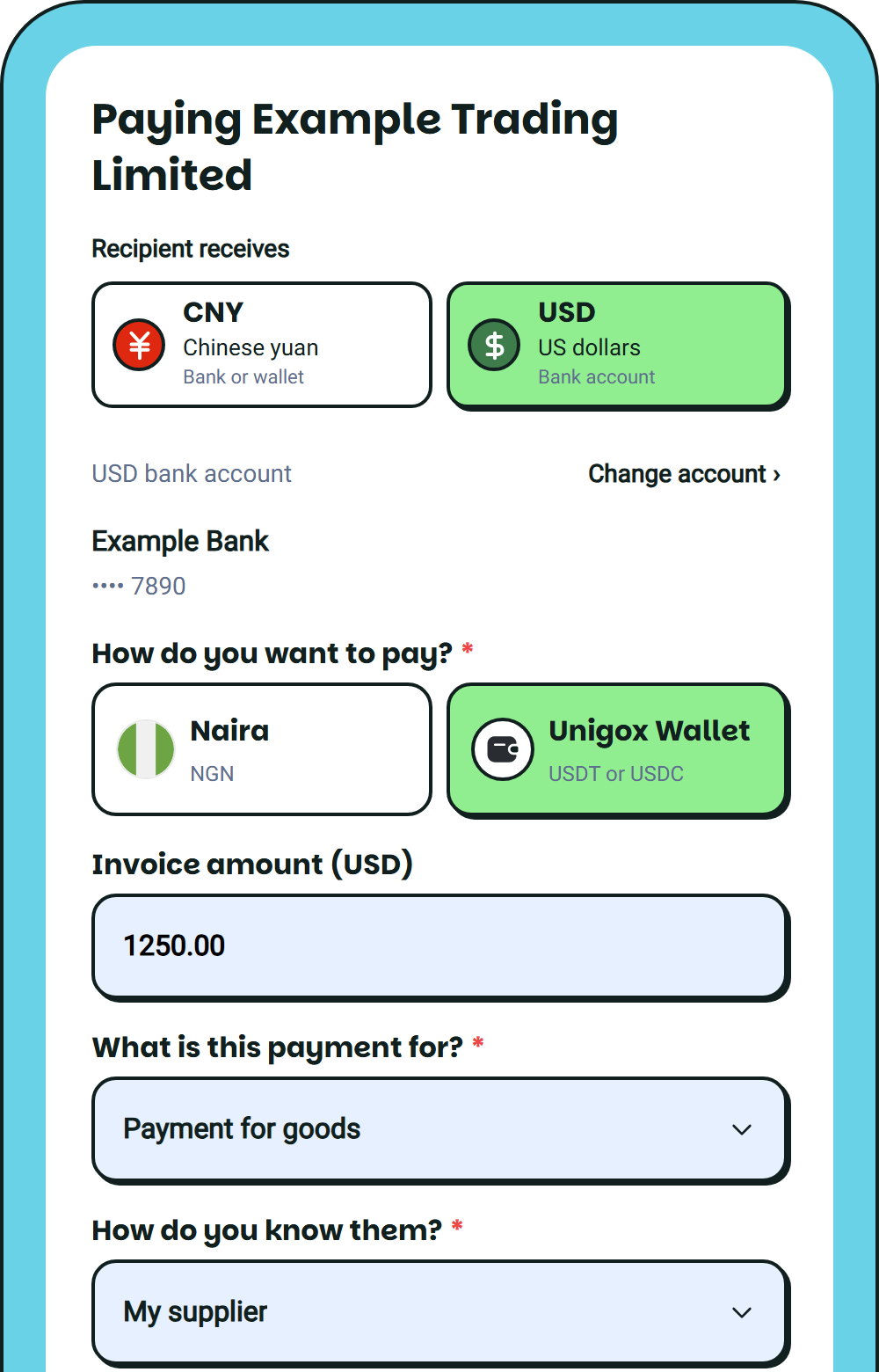
Choose **Unigox Wallet** to pay with USDT or USDC, or choose the local-currency option available to your account.
Enter the amount your supplier is owed in their receiving currency. For our invoice, enter **1250.00** under **Invoice amount (USD)**. For a yuan invoice, enter the amount in CNY.
Select the payment purpose and your relationship with the recipient. If you choose **Something else**, enter the description requested.
Keep any leading zeros and **NRA** or **OSA** prefix in the account number. These prefixes identify non-resident or offshore accounts. Do not add digits to make a prefixed account 20 digits long.
If the form asks you to remove punctuation from the company name, check the resulting name carefully. Ask the supplier if you are unsure. Select **Add recipient** when the details are complete.
{% endtab %}
{% tab title="China · CNY" %}
Choose **CNY** and the bank-account option. Ask your supplier for:
* Bank name and full account number.
* Company name in Latin letters and Chinese characters.
* The Chinese mobile number registered for the receiving bank account.
Find the bank using search. Enter the recipient’s registered mobile number with **+86**, then select **Add recipient**.

{% endtab %}
{% tab title="Hong Kong / Singapore" %}
Choose **USD**, then **USD Wire to Hong Kong** or **USD Wire to Singapore** under **How will they receive the money?**
Enter the company name in Latin letters, SWIFT/BIC code and full account number. Bank name is optional. Keep letters and leading zeros in the account number exactly as supplied, then select **Add recipient**.

{% endtab %}
{% endtabs %}
Using a saved supplier? Check that its account and receiving currency match this invoice before continuing.
## 3. Enter the amount and invoice
Choose **Unigox Wallet** to pay with USDT or USDC, or choose the local-currency option available to your account.
Enter the amount your supplier is owed in their receiving currency. For our invoice, enter **1250.00** under **Invoice amount (USD)**. For a yuan invoice, enter the amount in CNY.
Select the payment purpose and your relationship with the recipient. If you choose **Something else**, enter the description requested.
 **Paying a deposit?** Enter only the amount due now. A 30% deposit on a 10,000 USD order is 3,000 USD. Pay the balance separately when it is due.
Add an invoice number such as **INV-1042** to help identify the payment. This field is optional.
For a USD payment, check **Supplier invoice**. If your document was carried over from the earlier step, check that it is the correct invoice. Otherwise, attach a PDF, JPEG or PNG up to 8 MB.
* **Mainland China NRA/OSA account:** an invoice is required before sending.
* **Other supported USD accounts:** attaching an invoice is optional upfront. The receiving bank can still request documents.
* **CNY:** there is no invoice upload on this step. Keep your invoice available.
**Paying a deposit?** Enter only the amount due now. A 30% deposit on a 10,000 USD order is 3,000 USD. Pay the balance separately when it is due.
Add an invoice number such as **INV-1042** to help identify the payment. This field is optional.
For a USD payment, check **Supplier invoice**. If your document was carried over from the earlier step, check that it is the correct invoice. Otherwise, attach a PDF, JPEG or PNG up to 8 MB.
* **Mainland China NRA/OSA account:** an invoice is required before sending.
* **Other supported USD accounts:** attaching an invoice is optional upfront. The receiving bank can still request documents.
* **CNY:** there is no invoice upload on this step. Keep your invoice available.
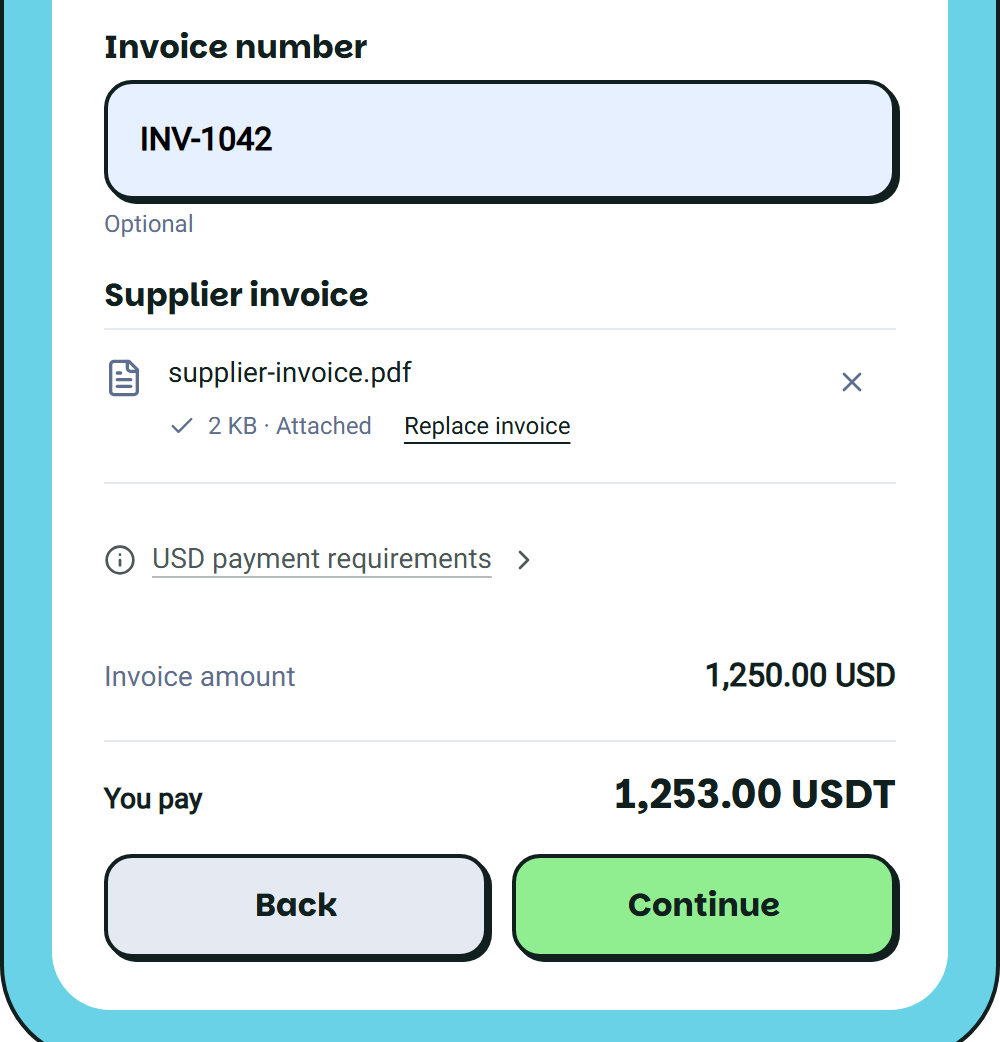 If you are attaching an invoice, wait for **Attached**. Use **Replace invoice** if the file is wrong. Select **Continue**.
## 4. Review the details and total
Check the supplier, bank account, receiving country, invoice currency and amount. Review the payment purpose and attached invoice, if any.
The two amounts have different jobs:
* **Invoice amount: 1,250.00 USD** is the amount due to the supplier in our example.
* **You pay: 1,253.00 USDT** is the amount to approve from the wallet in this example. Your quote will show your own total.
If you are attaching an invoice, wait for **Attached**. Use **Replace invoice** if the file is wrong. Select **Continue**.
## 4. Review the details and total
Check the supplier, bank account, receiving country, invoice currency and amount. Review the payment purpose and attached invoice, if any.
The two amounts have different jobs:
* **Invoice amount: 1,250.00 USD** is the amount due to the supplier in our example.
* **You pay: 1,253.00 USDT** is the amount to approve from the wallet in this example. Your quote will show your own total.
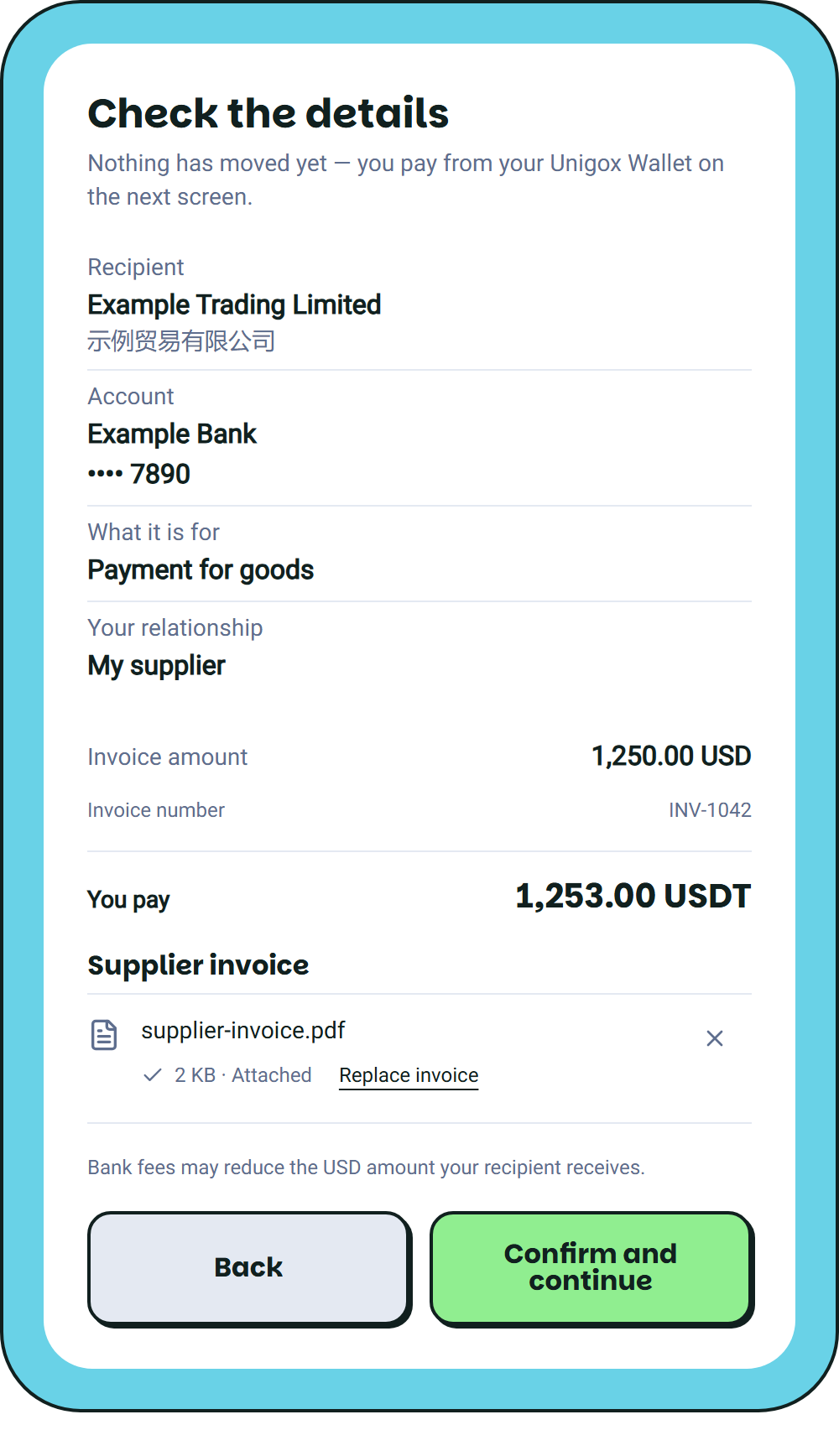 Check the price breakdown. Bank fees can reduce the USD amount the supplier receives. If they need an exact amount after fees, clarify this before paying.
Select **Confirm and continue**. This opens the payment step; it does not debit your wallet.
## 5. Fund and approve the payment
Follow the method you chose in Step 3. Local currency and Unigox Wallet are two alternatives.
{% tabs %}
{% tab title="USDT / USDC" %}
On **Pay from Unigox Wallet**, select USDT or USDC with enough balance. Check the amount under **You pay**.
Check the price breakdown. Bank fees can reduce the USD amount the supplier receives. If they need an exact amount after fees, clarify this before paying.
Select **Confirm and continue**. This opens the payment step; it does not debit your wallet.
## 5. Fund and approve the payment
Follow the method you chose in Step 3. Local currency and Unigox Wallet are two alternatives.
{% tabs %}
{% tab title="USDT / USDC" %}
On **Pay from Unigox Wallet**, select USDT or USDC with enough balance. Check the amount under **You pay**.
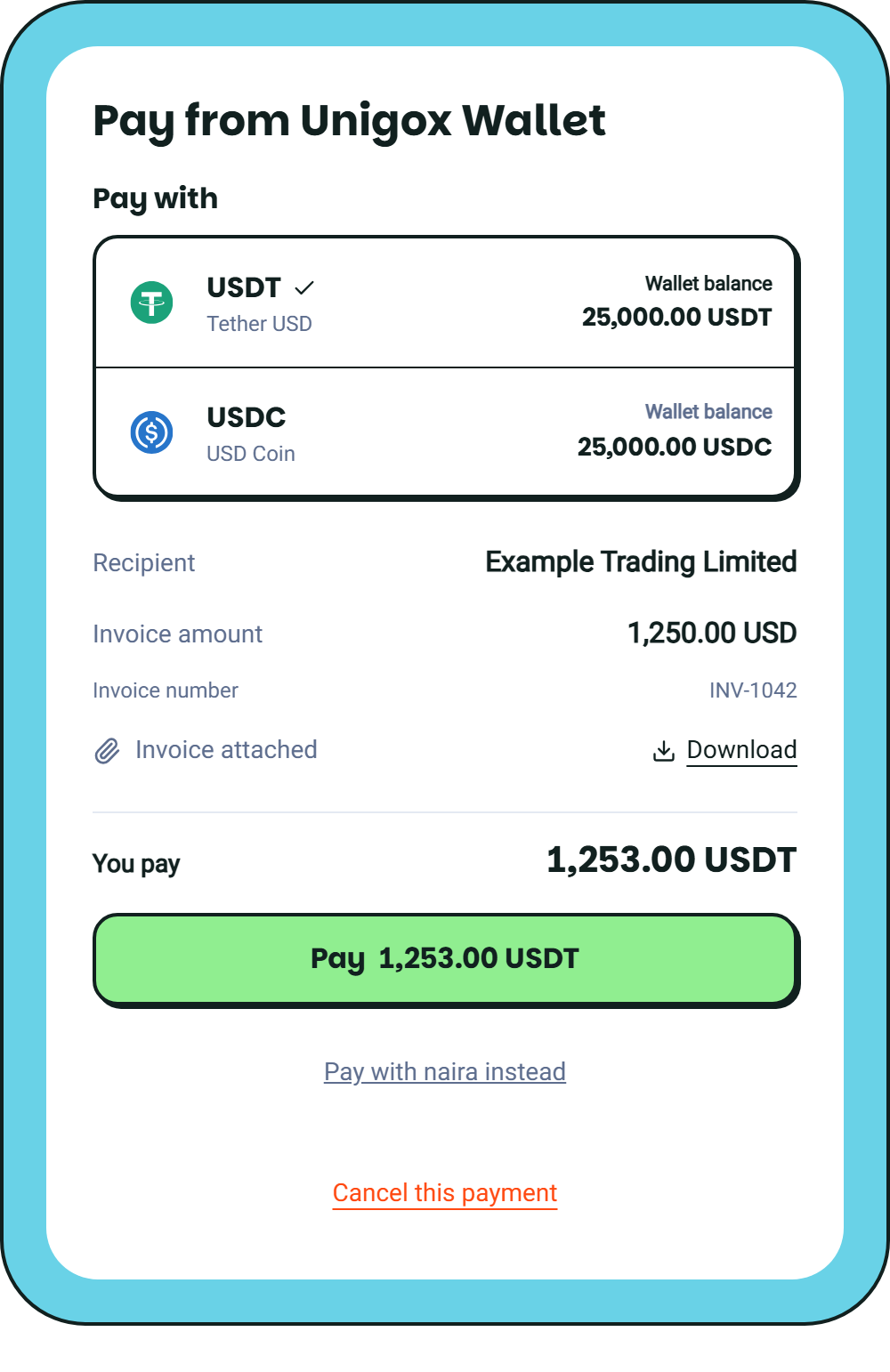 Select **Pay** with the amount shown and complete any PIN or security check requested. Then follow the payment’s progress in Step 6.
Need to add funds? Follow your wallet’s deposit instructions for the correct token and network. Return to the same invoice after the funds arrive and select **Pay**.
{% endtab %}
{% tab title="Local currency" %}
Your local-currency payment buys the USDT or USDC needed to pay the supplier. You complete that purchase first, then approve the supplier payment.
On **Buy the crypto for this payment**, check the amount of local currency to send. In this example, **1,884,500 NGN** buys the **1,253 USDT** needed for the **1,250 USD** invoice. Your available currency, method and quote can differ.

Select **Buy … with …** and follow the instructions shown. For a bank transfer:
1. Copy the current **Transfer Amount**, bank details and reference.
2. Send that exact amount from your banking app before the timer ends.
3. Return and select **I’ve sent the payment** after your bank confirms the transfer.

Use the details for this payment, not an older transfer. **I’ve sent the payment** reports what you have already done; it does not send money from your bank. If your method uses a payment link, follow its instructions instead.
If asked, upload your **bank transfer receipt** on **Confirm payment** and select **Submit proof**. The receipt should show the amount, receiving account, date and reference.

Wait for confirmation and release of the purchased crypto. Select **Claim** if shown. Some methods confirm automatically.
**Return to the same supplier payment.** Check the amount on **Pay**, select it and complete any security check requested. Buying crypto or adding funds alone does not pay the supplier.
{% endtab %}
{% endtabs %}
If the page closes or the result is unclear, check **Your payments** before trying again.
## 6. Check that your supplier has been paid
Open **Your payments**, or the history control in China payments, to check progress.
* **Preparing recipient payment:** Unigox has confirmed your funds and is preparing the supplier payment.
* **Paying your recipient:** the payment is on its way to the recipient’s bank.
* **Payment complete:** the payment is complete and the recipient has been paid.
Select **Pay** with the amount shown and complete any PIN or security check requested. Then follow the payment’s progress in Step 6.
Need to add funds? Follow your wallet’s deposit instructions for the correct token and network. Return to the same invoice after the funds arrive and select **Pay**.
{% endtab %}
{% tab title="Local currency" %}
Your local-currency payment buys the USDT or USDC needed to pay the supplier. You complete that purchase first, then approve the supplier payment.
On **Buy the crypto for this payment**, check the amount of local currency to send. In this example, **1,884,500 NGN** buys the **1,253 USDT** needed for the **1,250 USD** invoice. Your available currency, method and quote can differ.

Select **Buy … with …** and follow the instructions shown. For a bank transfer:
1. Copy the current **Transfer Amount**, bank details and reference.
2. Send that exact amount from your banking app before the timer ends.
3. Return and select **I’ve sent the payment** after your bank confirms the transfer.

Use the details for this payment, not an older transfer. **I’ve sent the payment** reports what you have already done; it does not send money from your bank. If your method uses a payment link, follow its instructions instead.
If asked, upload your **bank transfer receipt** on **Confirm payment** and select **Submit proof**. The receipt should show the amount, receiving account, date and reference.

Wait for confirmation and release of the purchased crypto. Select **Claim** if shown. Some methods confirm automatically.
**Return to the same supplier payment.** Check the amount on **Pay**, select it and complete any security check requested. Buying crypto or adding funds alone does not pay the supplier.
{% endtab %}
{% endtabs %}
If the page closes or the result is unclear, check **Your payments** before trying again.
## 6. Check that your supplier has been paid
Open **Your payments**, or the history control in China payments, to check progress.
* **Preparing recipient payment:** Unigox has confirmed your funds and is preparing the supplier payment.
* **Paying your recipient:** the payment is on its way to the recipient’s bank.
* **Payment complete:** the payment is complete and the recipient has been paid.
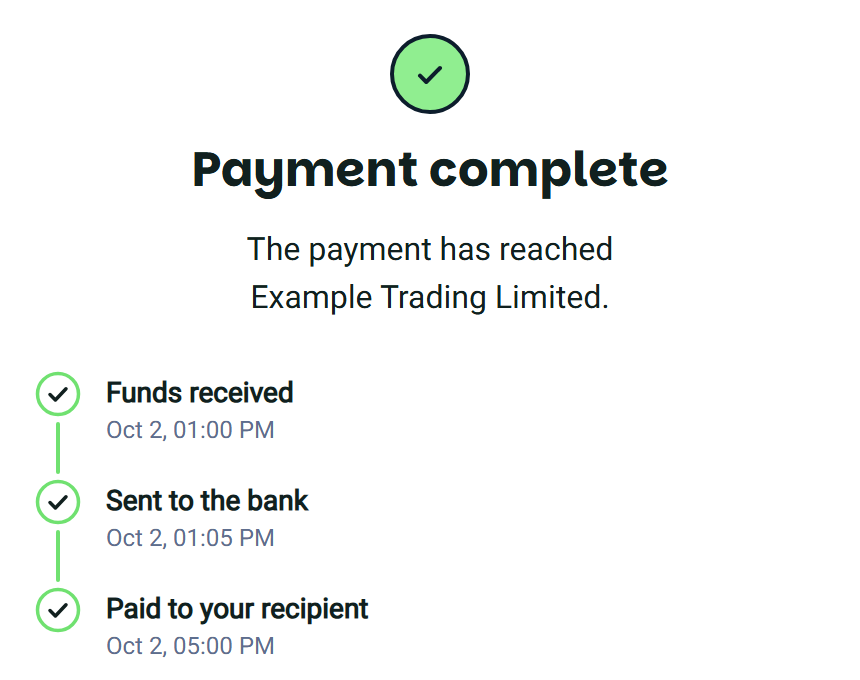 Look for **Paid to your recipient** or **Your recipient has been paid**. **Funds received** only confirms that Unigox has received your funds.
Keep the **Request ID** if you need help. It identifies the payment and can appear before you pay. Downloading the supplier invoice gives you your original file, not a payment receipt.
## How long does it take?
Check the estimate shown for your payment. Timing depends on the receiving account:
* **Mainland China domestic USD:** usually the same working day if processed before the cut-off, around 3 pm Singapore time. These accounts have 20 digits and no NRA/OSA prefix.
* **Mainland China NRA/OSA, Hong Kong or Singapore USD:** around two working days by SWIFT. Some bank connections take two to three.
* **CNY:** use the estimate shown for your CNY payment.
Bank checks, holidays and the time your funds are confirmed can affect arrival. USD payments start from **25 USD**; available amounts and methods are shown in your account.
## If you need help
**A bank number is rejected or details are missing:** check the receiving country and the supplier’s instructions. Keep the full account number, including letters and leading zeros. Ask support to check an unsupported account instead of changing the number to fit.
**Continue is disabled:** complete the required fields, purpose and relationship. Attach an invoice if required and read any message beside the field.
**A payment option is unavailable:** use another available funding method or contact support. Keep the receiving currency agreed with your supplier.
**A quote or transfer timer expired:** if you have not paid, get current instructions before sending. If you have already sent funds, keep the receipt and contact support from that payment.
**A payment is pending:** open the existing payment and follow any action shown. Do not send it again while the outcome is unclear.
**A refund is in progress:** check the payment status and your Unigox Wallet for returned USDT or USDC. A refund to your wallet does not reverse the original local bank transfer.
Use in-app support or email . Include the Request ID, invoice reference, amount, currency and a screenshot of the status.
## Ready for the next invoice?
Choose **Pay another invoice** or select the supplier from your recipients. Check the bank details, enter the new amount and review the new quote. Your saved recipient and payment history are there for the next order.
To update a supplier, use the three-dot menu and **Edit recipient**, then check the relevant bank account. Changes to a saved recipient do not change a payment already submitted. Contact support from that payment if its details are wrong.
From the first production deposit to the final shipment balance, you can pay your supplier through Unigox in the currency their bank account accepts.
[**Pay your supplier**](https://www.unigox.com/?type=pay-bill)
Have your invoice and bank details ready, and complete identity verification before paying.
Look for **Paid to your recipient** or **Your recipient has been paid**. **Funds received** only confirms that Unigox has received your funds.
Keep the **Request ID** if you need help. It identifies the payment and can appear before you pay. Downloading the supplier invoice gives you your original file, not a payment receipt.
## How long does it take?
Check the estimate shown for your payment. Timing depends on the receiving account:
* **Mainland China domestic USD:** usually the same working day if processed before the cut-off, around 3 pm Singapore time. These accounts have 20 digits and no NRA/OSA prefix.
* **Mainland China NRA/OSA, Hong Kong or Singapore USD:** around two working days by SWIFT. Some bank connections take two to three.
* **CNY:** use the estimate shown for your CNY payment.
Bank checks, holidays and the time your funds are confirmed can affect arrival. USD payments start from **25 USD**; available amounts and methods are shown in your account.
## If you need help
**A bank number is rejected or details are missing:** check the receiving country and the supplier’s instructions. Keep the full account number, including letters and leading zeros. Ask support to check an unsupported account instead of changing the number to fit.
**Continue is disabled:** complete the required fields, purpose and relationship. Attach an invoice if required and read any message beside the field.
**A payment option is unavailable:** use another available funding method or contact support. Keep the receiving currency agreed with your supplier.
**A quote or transfer timer expired:** if you have not paid, get current instructions before sending. If you have already sent funds, keep the receipt and contact support from that payment.
**A payment is pending:** open the existing payment and follow any action shown. Do not send it again while the outcome is unclear.
**A refund is in progress:** check the payment status and your Unigox Wallet for returned USDT or USDC. A refund to your wallet does not reverse the original local bank transfer.
Use in-app support or email . Include the Request ID, invoice reference, amount, currency and a screenshot of the status.
## Ready for the next invoice?
Choose **Pay another invoice** or select the supplier from your recipients. Check the bank details, enter the new amount and review the new quote. Your saved recipient and payment history are there for the next order.
To update a supplier, use the three-dot menu and **Edit recipient**, then check the relevant bank account. Changes to a saved recipient do not change a payment already submitted. Contact support from that payment if its details are wrong.
From the first production deposit to the final shipment balance, you can pay your supplier through Unigox in the currency their bank account accepts.
[**Pay your supplier**](https://www.unigox.com/?type=pay-bill)
Have your invoice and bank details ready, and complete identity verification before paying.